
Why Choose an OPOS Printer for Your Business?

Time:2026-09-19 Author:Mason
0%

Why choose an OPOS Printer when every checkout delay can frustrate a waiting customer? The answer begins with compatibility, not appearance. An OPOS Printer connects receipt printing with point-of-sale software through a standardized interface. This can simplify device control, reduce custom integration work, and support smoother replacements. Still, compatibility alone does not guarantee dependable service.

Industry data supports the wider move toward connected checkout technology. Zebra Technologies’ 2023 Global Shopper Study reported that 73% of shoppers prefer retailers using technology to improve their shopping experience. Grand View Research also identifies expanding demand for modern point-of-sale terminals, driven by faster transactions and better retail management. These findings do not prove that every business needs an OPOS Printer. Store size, software support, receipt volume, and maintenance access still matter.

Greg Buzek, founder and president of IHL Group, has repeatedly emphasized the importance of reliable retail operations: “The store is becoming a technology platform.” That principle makes an OPOS Printer worth closer attention. A grocery counter may need rapid, continuous printing. A café may value compact design and quiet operation. A pharmacy may prioritize clear text and dependable paper handling. Small details matter.

The choice is not glamorous. It can be easy to overestimate specifications and underestimate daily servicing. Test the printer with your actual POS software, paper, network, and peak-hour workload. An OPOS Printer is valuable when it quietly performs every transaction, without becoming another problem for staff.
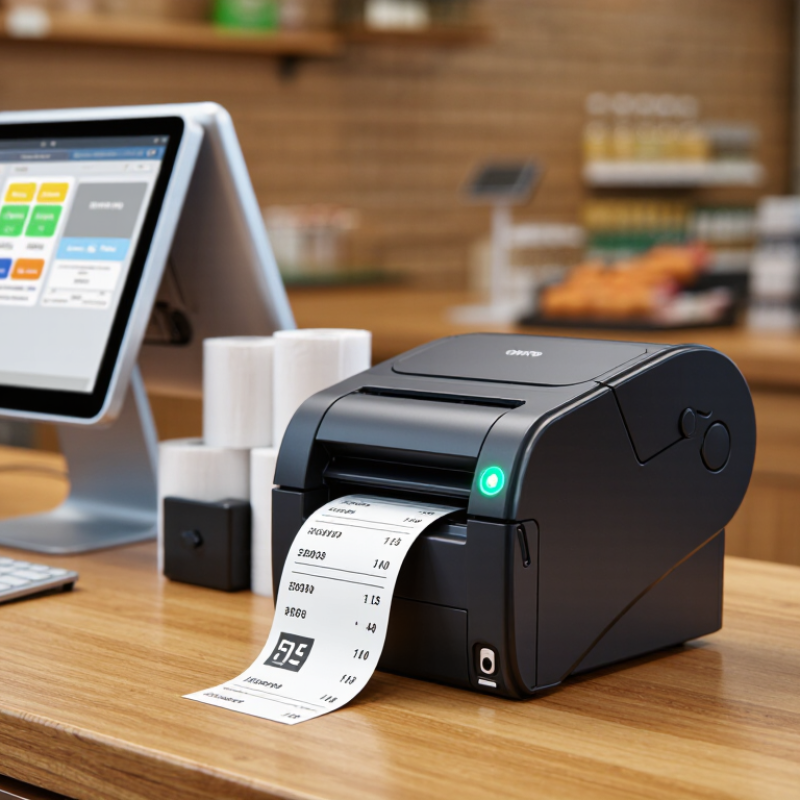
Why Choose an OPOS Printer for Your Business?

What Is an OPOS Printer and How Does It Work?

An OPOS printer is not simply a receipt printer with extra software. OPOS means OLE for Retail POS, a standardized interface that helps point-of-sale applications communicate with retail hardware. The application sends a logical request, such as “print receipt” or “open drawer.” A service object then translates that request into commands the printer understands. It can also return status information, including paper shortages, cover errors, or communication failures.

This structure reduces the need for separate code across different checkout devices. That matters as payment habits become more complex. The 2024 Global Payments Report states that digital wallets represented about 50% of global e-commerce transaction value and 30% of in-store payment value in 2023. An OPOS setup can help connect receipt printing with changing payment workflows, though it does not solve every integration problem.

Installation still requires care. It is not magic. A mismatched driver, incorrect logical-device name, or loose USB cable can stop a busy counter. The printer may work in a test utility but fail inside the actual checkout application. Industry guidance in the UnifiedPOS specification emphasizes standardized device control, while PCI DSS v4.0.1 stresses secure payment environments. These standards support better planning, but staff testing remains essential. In real stores, small operational details often decide whether the system feels reliable.

Key Features of OPOS Printers for Business Operations

OPOS printers support reliable business operations through standardized communication. The UnifiedPOS 1.14.1 specification defines interfaces for receipt printers, cash drawers, and other retail devices. This reduces custom coding between checkout software and hardware. Staff can print receipts, open drawers, and check device status from one operating environment. That matters during busy periods.

Key features include automatic status reporting, paper-near-end alerts, cutter control, and flexible connectivity. USB suits a compact counter, while Ethernet supports shared printing across a store network. Many models also handle barcode receipts, logos, and different paper widths. According to the National Retail Federation and Appriss Retail’s 2023 returns report, shoppers returned an estimated 14.5% of retail sales, worth about $743 billion. Clear, readable receipts can support return checks and reduce avoidable disputes.

Operational experience still reveals weaknesses. A network printer may stop working after a loose cable, incorrect driver, or overloaded router. No device is maintenance-free. Teams should test paper loading, cutter performance, recovery after power loss, and compatibility with existing POS software. The PCI Security Standards Council’s PCI DSS v4.0.1 guidance also reinforces controlled access and secure system management around payment environments. An OPOS printer does not secure payments by itself. It only performs well within a managed setup.

Source: UnifiedPOS Specification 1.14.1; NRF and Appriss Retail, 2023 Consumer Returns in Retail; PCI Security Standards Council, PCI DSS v4.0.1.

How OPOS Printers Integrate with Point-of-Sale Systems

An OPOS printer connects the receipt printer to a point-of-sale system through a standardized software interface. The system can send print commands, open the cash drawer, and check printer status without custom coding for every device. This matters during a busy checkout, when a paper-out warning must appear before the queue grows.

The 2024 Global Payments Report estimates that digital wallets represented 30% of global point-of-sale transaction value in 2023. Payment methods are changing quickly, so the printer should work with the wider POS workflow, not operate as an isolated box. OPOS integration helps link receipts, refunds, tax details, and transaction records in one process. Staff can select a receipt format from the POS screen, while the printer handles alignment and cutting automatically. Small details matter.

In practical installations, compatibility still needs testing. Check the operating system, OPOS service objects, connection type, drawer port, and recovery behavior after a network interruption. A printer may appear compatible yet fail when the POS sends unusual characters or mixed-language receipts. That gap is easy to miss. Industry implementation experience shows that a short pilot with real receipts often reveals more than a specification sheet. Use transaction logs and printer-status messages to diagnose failures, rather than replacing hardware immediately. The integration is useful, but never entirely effortless.

Business Benefits of Choosing an OPOS Printer

Why Choose an OPOS Printer for Your Business?

An OPOS printer can make point-of-sale operations more stable and easier to manage. It connects with compatible checkout software through a common interface. This reduces custom integration work during installation. In a busy store, a clear receipt can print while the next customer is being served. That small gain matters during lunch rushes. Staff also spend less time troubleshooting separate drivers and settings. I have found that predictable printing improves training, especially for new employees. It is not magic, though. Poor software configuration can still cause delays.

The business benefits extend beyond faster receipts. OPOS compatibility can support centralized printer settings, status checks, and easier device replacement. A manager may identify low paper or an offline printer before queues grow. Reliable output also helps customers check prices, taxes, and transaction details at the counter. For multi-terminal operations, standardized devices can reduce maintenance complexity. However, businesses should review software compatibility before purchasing. Some older systems may need updates or technical testing. That step is easy to overlook.

Tips: Test the printer with your actual checkout software. Print sample receipts during peak hours. Check paper loading and cutter access. Keep one approved spare nearby. Record error messages for technicians. Measure print speed in real conditions, not only specifications. Review the setup after one month. You may discover that staff need a simpler workflow.

Factors to Consider Before Selecting an OPOS Printer

Why Choose an OPOS Printer for Your Business?

Before selecting an OPOS printer, confirm compatibility with your existing POS software. OPOS support does not always mean plug-and-play. Check the operating system, driver version, interface, paper width, and cash-drawer connection. A printer that works beside a busy checkout counter should print clearly at 200 millimeters per second or faster. It should also handle frequent cutter cycles without overheating. Small details matter.

Transaction volume is another practical test. Grand View Research valued the global POS terminals market at approximately USD 99.9 billion in 2023, with continued growth projected through 2030. That expansion suggests more connected checkout equipment, but market growth does not guarantee reliable local performance. Ask for a documented duty cycle, recovery time after paper replacement, and available diagnostic tools. Test the printer during peak hours, not only in a quiet showroom.

Security and operating cost deserve equal attention. The PCI Security Standards Council recommends limiting payment-system access and protecting connected components through controlled configurations. Keep the printer outside sensitive payment-data paths where possible. Review firmware procedures and user permissions. Energy use, paper waste, and replacement cutter costs also affect ownership. The U.S. Environmental Protection Agency’s ENERGY STAR program reports that certified imaging equipment can reduce energy consumption, although receipt printers may not always fall within the same category. That limitation needs checking. I once treated driver stability as a minor issue; it caused more downtime than slow printing. A short pilot can expose that mistake early.

FAQS

What is an OPOS printer?

It is a receipt printer using standardized software communication. The interface connects printing, drawer control, and status checks.

How does it support point-of-sale operations?

The POS system sends print commands through one common interface. Staff can print receipts, open drawers, and view warnings from one screen.

Which connections are commonly available?

USB works well for a small counter. Ethernet supports shared printing across a store network. The cable still matters.

What status alerts can the printer provide?

It can report paper shortages, paper-near-end conditions, and device errors. These alerts help staff respond before checkout lines become longer.

Can OPOS printers handle different receipt formats?

Many models support logos, barcodes, varied paper widths, and mixed-language text. Test unusual characters before full deployment. Specifications can miss real failures.

How can a printer support returns and refunds?

Clear receipts show transaction details, tax information, and purchase dates. Staff can compare those details during return checks. Readable paper helps.

What should teams test before installation?

Test paper loading, cutting, drawer connections, operating systems, and POS compatibility. Print real receipts during a short pilot. That exposes practical gaps.

What problems can interrupt network printing?

A loose cable, incorrect driver, or overloaded router can stop printing. Power-loss recovery also needs testing. No printer is maintenance-free.

Does an OPOS printer secure payment information?

No. It only performs within a controlled payment environment. Teams still need restricted access, secure configuration, and regular system management.

What is a sensible troubleshooting approach?

Check printer-status messages and transaction logs before replacing hardware. Review cables, drivers, paper, and network conditions. The printer may not be the real problem.

Conclusion

An Opos Printer is a specialized receipt printer designed to work smoothly with point-of-sale systems in retail, hospitality, and other business environments. It connects with POS software through compatible drivers and communication interfaces, allowing sales data to be converted into clear, accurate receipts, order tickets, and transaction records. Its key features may include fast printing, reliable performance, flexible connectivity, compact design, and support for different paper formats.

Choosing an Opos Printer can improve checkout efficiency, reduce printing delays, and support more organized daily operations. It may also simplify system integration and provide consistent output during busy periods. Before selecting a model, businesses should consider compatibility with existing POS software, connection options, print speed, maintenance needs, paper requirements, durability, operating environment, and total cost. A carefully selected printer can provide dependable service while supporting smooth and efficient business workflows.

Mason

Mason

Mason is a seasoned marketing professional with a deep expertise in the company's offerings and a passion for driving brand awareness. With a strong background in digital marketing strategies, he has an innate ability to connect with diverse audiences and effectively communicate product benefits.......